How do I grade documents on the Remarkable tablet?
In short:
Import: I import the PDFs on the tablet using the remarkable app on my mac.
Add grading criteria: at the end of each PDF I add a new page with a copy and paste of the grading criteria.
Annotate: I annotate the PDF with the pen.
Grading draft: I write with the keyboard folio case a first draft of my comments.
Review notes: I do a ping pong between the hand made notes and the typed text to verify I have everything in my typed comments.
Move to Excel: I sync the document with the Remarkable app and bring my notes in the Excel spreadsheet used for final grading. There on my mac I also do a last round of polishing and proofreading.
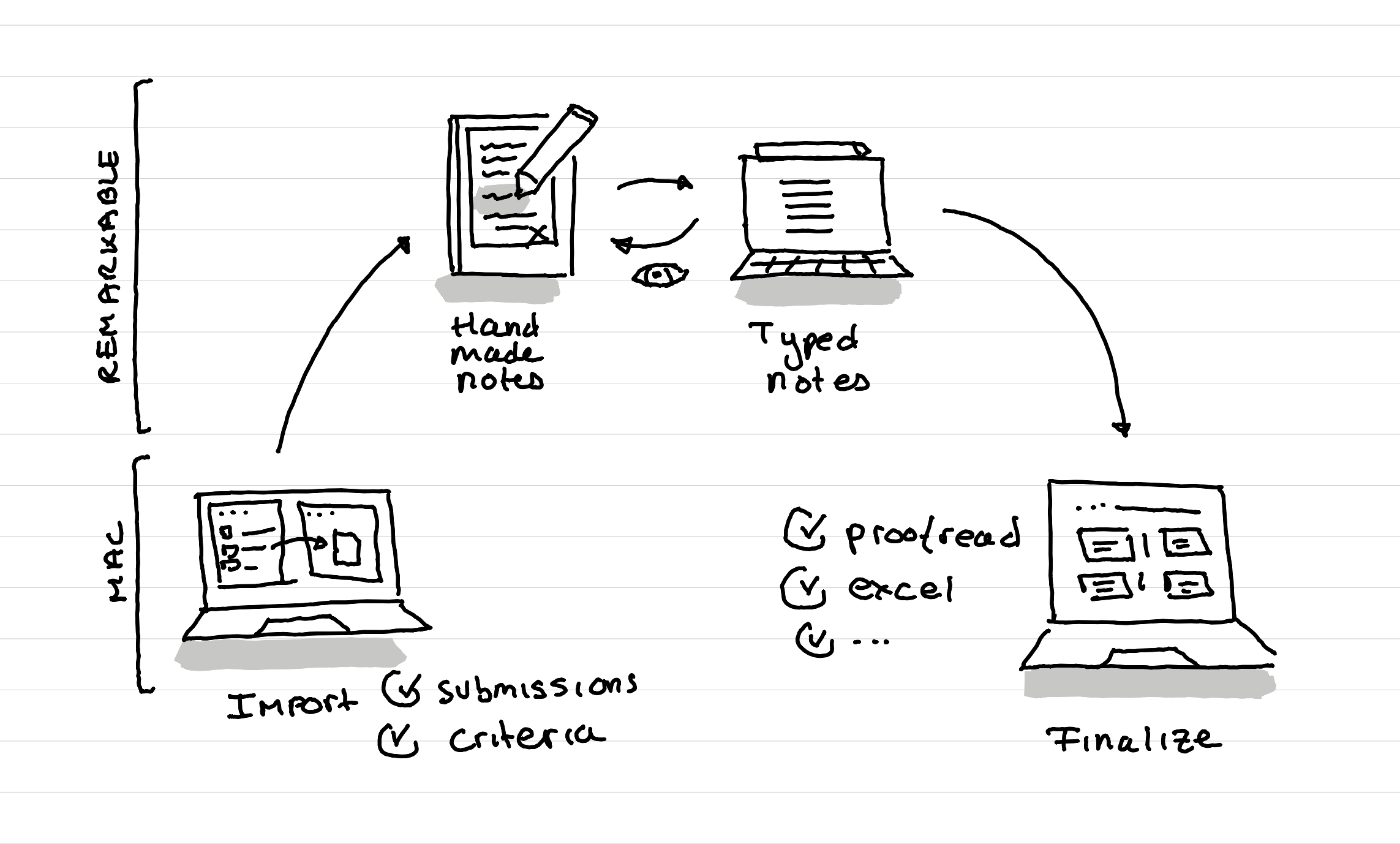
As I've decided to move a lot of my thinking, writing work from my computer to the Remarkable tablet, I've also started to do the grading of the documents by the learners I supervise on the Remarkable.
What I really like about grading on the remarkable is that it focuses me totally. I can't open a link and then finish totally elsewhere.
Another advantage is that I can, in a coaching session, review with the learners the hand made notes to show them in context where there were details that don't make it in the final grading (that needs to be short) but that still might interest them.
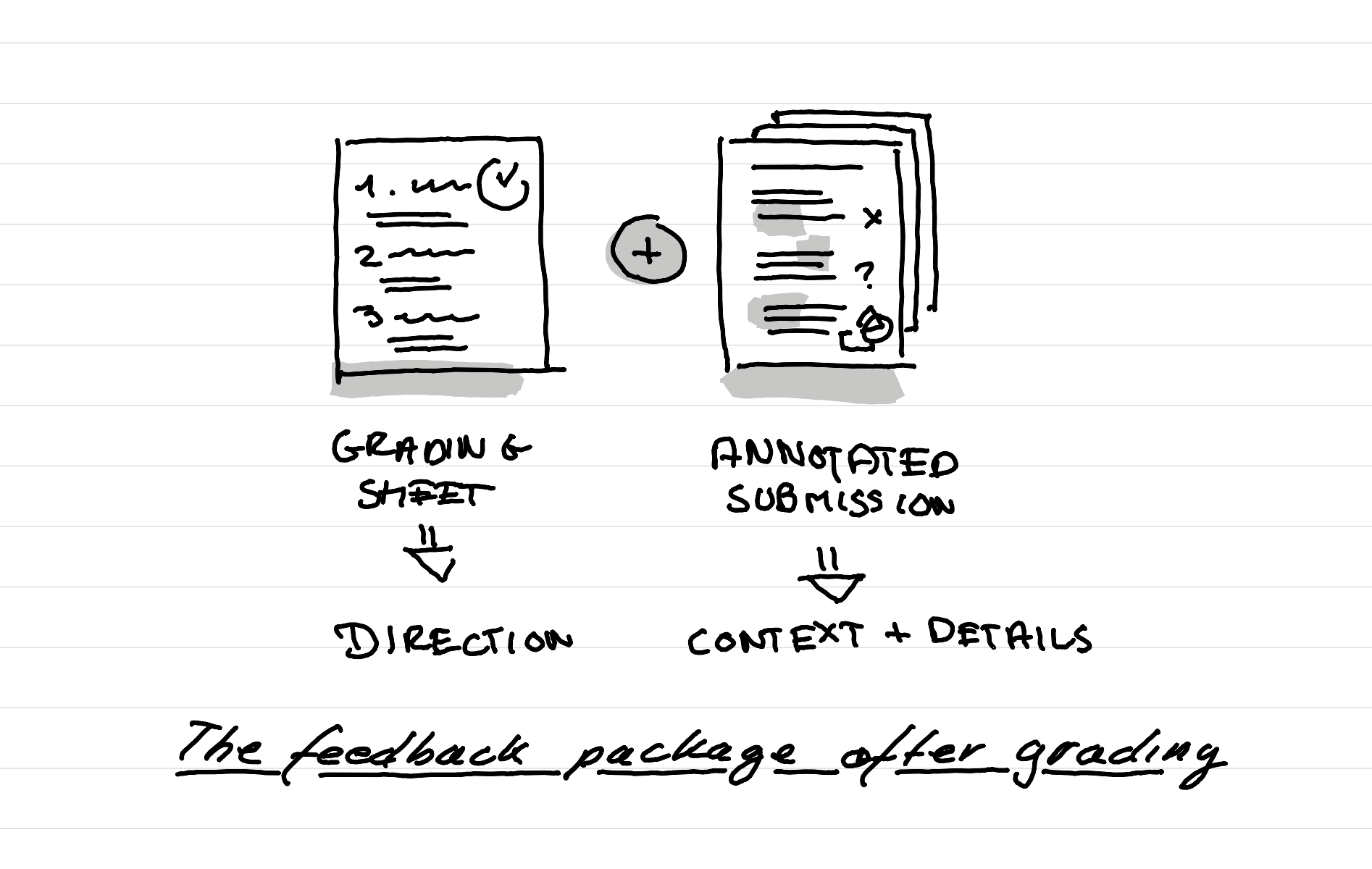
In this way the official grading sheet gives the general direction, and the annotated submission gives the learner the context of why exactly the feedback looks like this and the tiny details that can be improved very quickly.
Backstage of this article
This article was illustrated and written by hand on a refurbished Remarkable II tablet. The text was then converted into typed text through the connect service of Remarkable. You can download a PDF version of the original note below if you are curious.