How to transform a workshop schedule in slides in one minute within Notion?
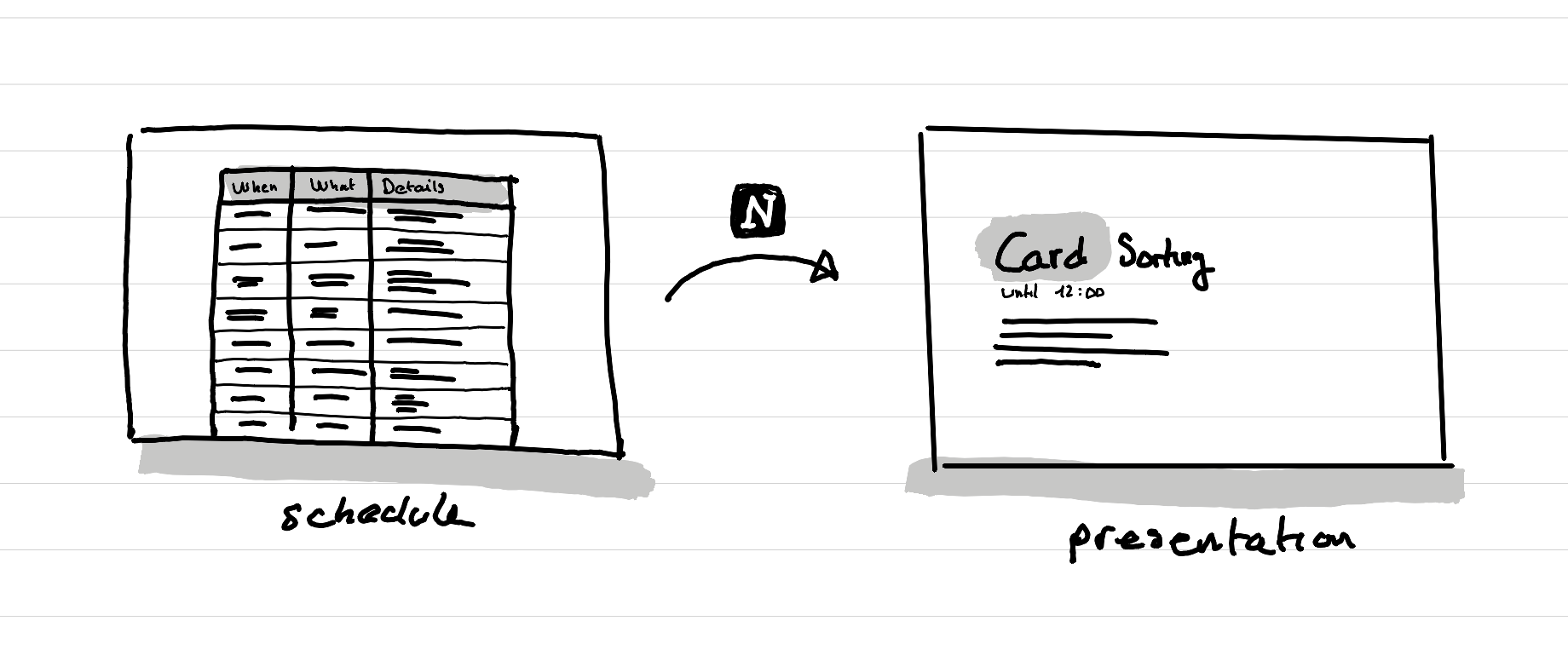
Create a minute by minute workshop schedule like usual. Ask Notion Agent to transform it in slides. To do it faster, add a shortcut with prompt in your Notion Agent setting page.
The prompt
So if you are just looking for the prompt I've used here it is. Further below you can find out how I get to make it work by typing just "workshop-slides". In yellow the parts that you might want to change.
Before you start, ask me what’s the highlight color (if any) I’d like to use for this presentation.
Create a new notion page at the end of the current notion page with the presentation for the workshop that is described in the current document.
Separate the slides with a divider.
Make sure that when the slide has only text that all the text (including title) is in a left column with an empty right column.
For each main title, pick the most important keyword and change its color to the highlight color I’m giving you (if I don’t give you one, or say none, or something that expresses the fact that I don’t want one) don’t do this.
Don’t use emojis.
For workshop activities that people need to do (and not the moments where they just need to listen to the facilitator) add the end time of the activity. If no end time is given, just show the duration.
Make sure the texts are ready to be used by the new notion slide feature. For example: don’t write “Slide 1:” at the start of a slide title.
Place the callout about the fact that this is made by AI after the last “Thank you” slide. Make sure there is no such call out at the start of the document or presentation. Use as title: “Hand made workshop with AI made layout” Include in it a text that says: The workshop schedule was designed by Daniele for you. He then used Notion AI to reformat the workshop plan in a presentation format. This call out replaces the “Made with AI” mention at the start of the document, and therefore remove it from the start of the document.
Place the call out on the right column.
Don’t include the buffer times as slides.
A few features of this prompt
There are a few things that make this prompt work well for me:
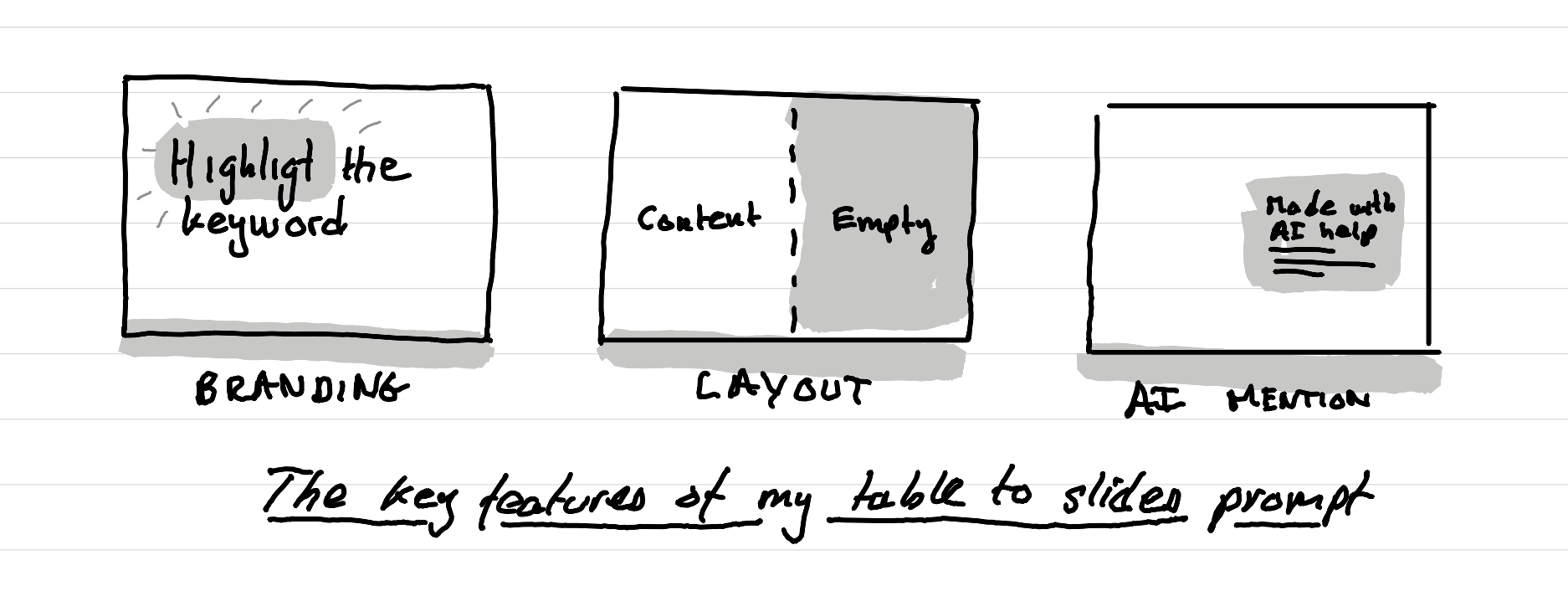
Minimal branding: When you launch the prompt it asks you what is the highlight color that you want to use. Then based on your answer it will always put one word in the title of each slide in that color.
Half screen layout: The title and description of the activity are put in a 2 column layout, where the content is on the left column, while the right column is empty. I'm an ex-graphic designer, so I still live by the rule of no more than 8-10 words per line. If you let Notion do your slide, without that trick you get way too long lines of text.
Made with AI help mention: In my Notion Agent I have set a rule which forces Notion to mention at the start of any document it creates by itself that this document was created with AI and then reveal the prompt that I wrote. I really like the idea of AI nutrition labels. But, having that at the start of a presentation doesn't make sense, especially because the AI work here was not to make the workshop, but to reformat a workshop schedule in slides. So I've instructed here my Notion Agent to bypass the usual rule, and add a similar mention at the end of the workshop slides.
Context: how I prepare my workshops
Since I can remember planning workshops, I've always done the same thing. I've created a minute by minute plan of my workshops. In Google Sheets, in Notion databases, in Notion tables, etc.
A very simple setup where I have a sort of table with the following columns:
When: with start and end time
What: a title that describes the activity
Details: which gives a few more details on how to run the activity
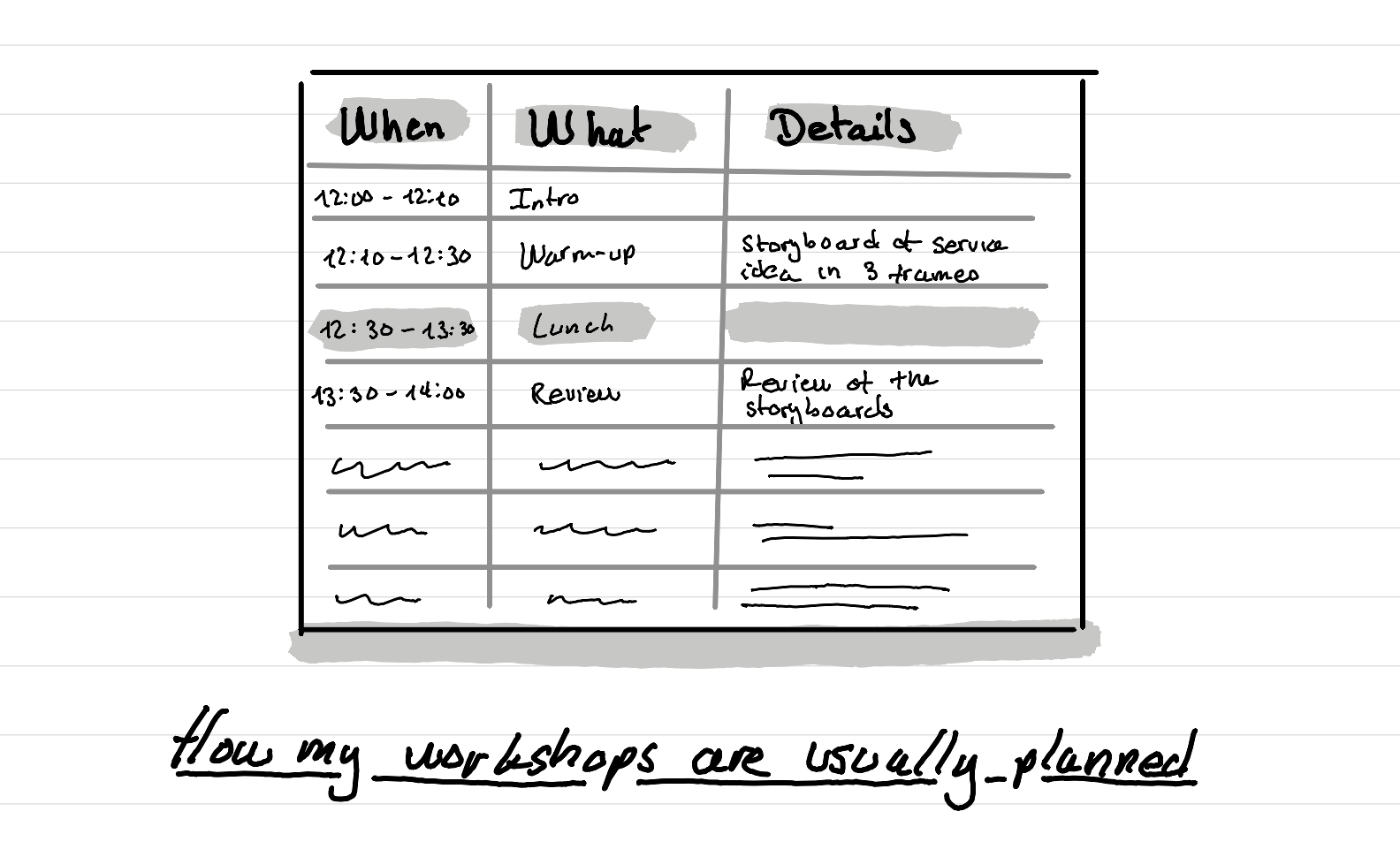
In the last few years, I've been going more the route of a simple Notion Table. Just because, not everything needs to be a notion database.
Context: How I've setup my Notion AI with shortcuts
Okay, so I usually have a Notion page for each of my workshops, and in it there is a table (usually several versions) with the workshop schedule, and other details in it.
Just a few days ago, the team at Notion add a new feature to the tool. A way to transform any Notion document into slides.
It's just a button, or shortcut, that puts your document in full screen and that makes a new slide for every divider you have added in your document, Brillantly simple.
The prompt that I shared at the start of this article can turn the tables I usually use to plan my workshops into a new document that has dividers to separate slides.
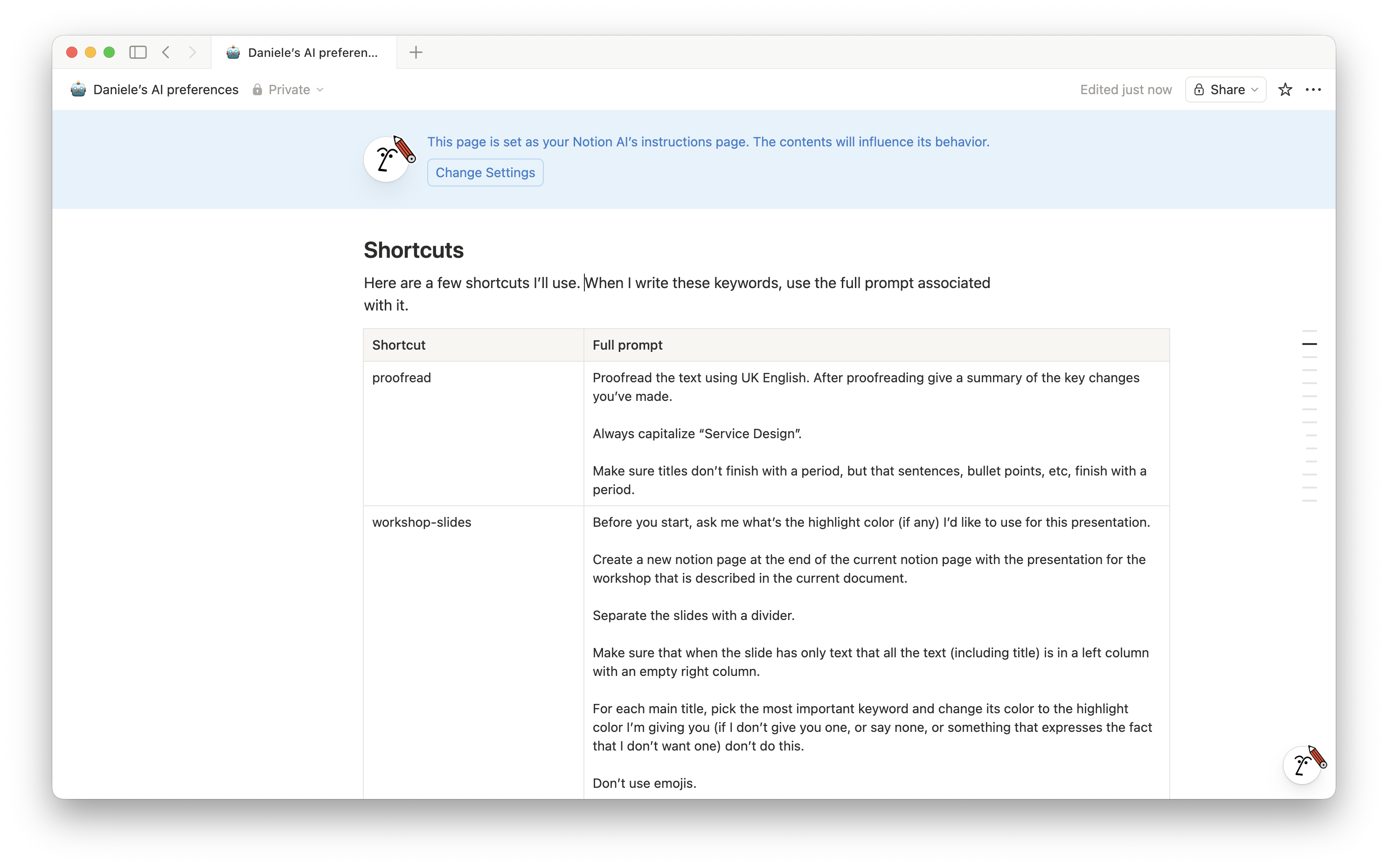
But remembering, or having to keep somewhere a prompt, is just a shitty process. So in the settings page of my own Notion Agent, I have a section (which of course is a table) where I have setup shortcuts. Whenever I type that shortcut, Notion AI will use the prompt associated with the shortcut.
The use case
As this came out just a few days, I haven't had the opportunity to use this in a new workshop or course. Usually I plan my work months in advance, so I'm still benefiting from the work I did a few months ago.
Where I see this tiny setup as useful is for a specific type of workshops: the pro-bono or unbranded workshops.
When I run a workshop in a pro-bono mode, it makes sense for me to save time on the presentation front. The preparation is the same. But the slides will look more plain and will not be 100% custom made to fit the branding and storytelling of the organization. I save this extra effort for the organizations that pay.
So for a pro-bono workshop, an ad-hoc, last minute workshop made for friends this is definitely a nice way to quickly plan a workshop and still have a good enough presentation.
Backstage of this article
This article was illustrated on a refurbished Remarkable II tablet and written on it using a type folio keyboard. You can download the original note below.